Detection Settings
Detection settings are configured per region and are accessed by selecting the Region - Object Detection entry for a region in the navigation tree. The settings are organized across several tabs, each covering a different approach to detection. You can use one tab at a time or combine them — for example, using object type to narrow the focus to vehicles before applying a natural language description.
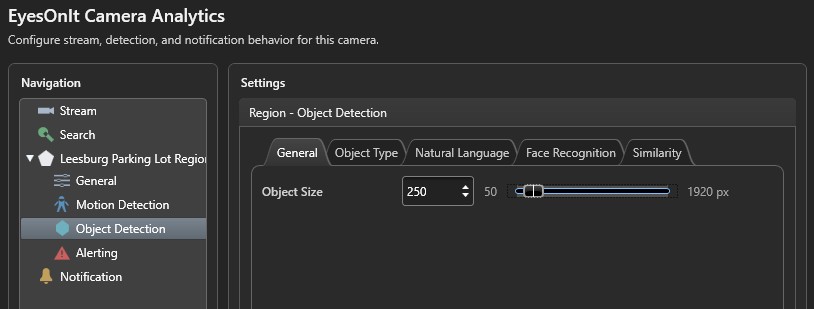
General tab
The General tab has a single setting that applies regardless of which detection mode you use.
| Setting | Description |
|---|---|
| Object Size | The minimum size (in pixels) that a detected object's bounding box must be. Anything smaller is ignored. |
Getting this right makes a significant difference in detection quality. Set it too small, and EyesOnIt may pick up background noise or distant objects you do not care about. Set it too large, and it may miss objects that are partially obscured or farther from the camera. A good starting point is to think about the smallest object you would want to detect and tune from there.
Object Type tab
Object type detection classifies objects into broad categories before deciding whether to alert. This is a good first filter when you know exactly what kind of object you are looking for.
| Setting | Description |
|---|---|
| Use Object Type Detection | Enables object type filtering for this region. |
| Object Type | The category to detect: Person, Vehicle, Animal, or Bag. |
| Object Detection Threshold | The minimum confidence score (1–99) required for a classification to be accepted. |
Natural Language tab
Natural language detection is one of the most flexible options EyesOnIt offers. Rather than selecting from a fixed list of categories, you describe what you are looking for in plain text — and EyesOnIt uses AI to evaluate whether each detected object matches your description.
| Setting | Description |
|---|---|
| Use Natural Language Detection | Enables natural language detection for this region. |
| Object Descriptions | A list of one or more text descriptions. You can add, edit, and remove descriptions using the toolbar below the list. |
Object Description dialog
When you add or edit a description, a small dialog appears with the following fields:
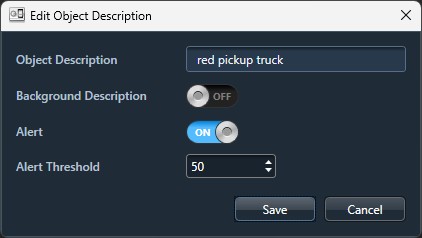
| Field | Description |
|---|---|
| Object Description | The text description of what to detect — for example, "person wearing a high-visibility vest" or "vehicle with trailer". |
| Background Description | Turn this on if the description provides scene context rather than describing what to alert on. Background descriptions help EyesOnIt understand the environment without generating alerts themselves. |
| Alert | Turn this on if a match to this description should trigger an alert. |
| Alert Threshold | The minimum confidence score (0–99) required before this description generates an alert. |
You can have multiple descriptions active at the same time. For example, you might have one description for "person in hard hat" with alerting on, and another for "construction equipment" as a background description to provide scene context.
Face Recognition tab
Face recognition detection compares faces detected in the frame against your enrolled database. Before using this tab, make sure you have enrolled the relevant people and groups in the Face Recognition Task.
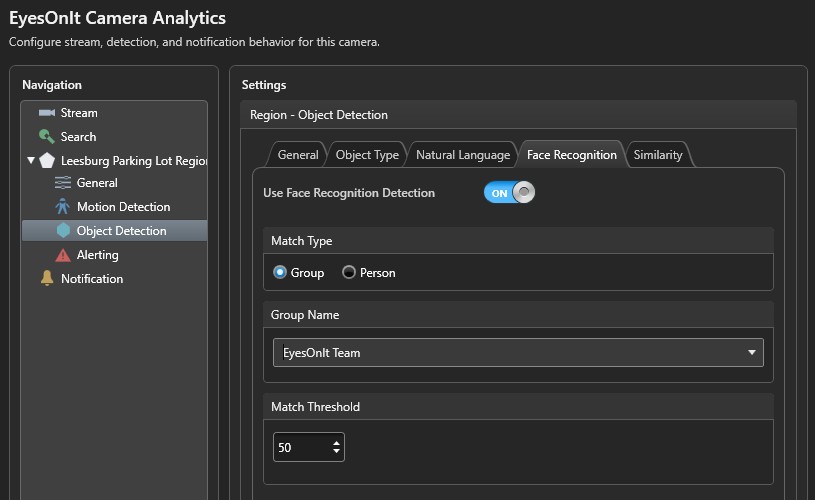
| Setting | Description |
|---|---|
| Use Face Recognition Detection | Enables face recognition detection for this region. |
| Match Type | Group to alert on any enrolled person belonging to a specific group, or Person to watch for a specific individual. |
| Group Name / Person Name | The group or person to match. Start typing and select a suggestion from the autocomplete list — the list is populated from your enrolled data. |
| Match Threshold | The minimum confidence score (1–99) required for a face match to be accepted. |
Similarity tab
Similarity detection lets you provide a reference image and alert whenever something in the frame looks visually similar to it. This is particularly useful when you want to track a specific person or vehicle but do not have an enrollment record for them — for example, when you have captured an image of someone from an earlier incident.
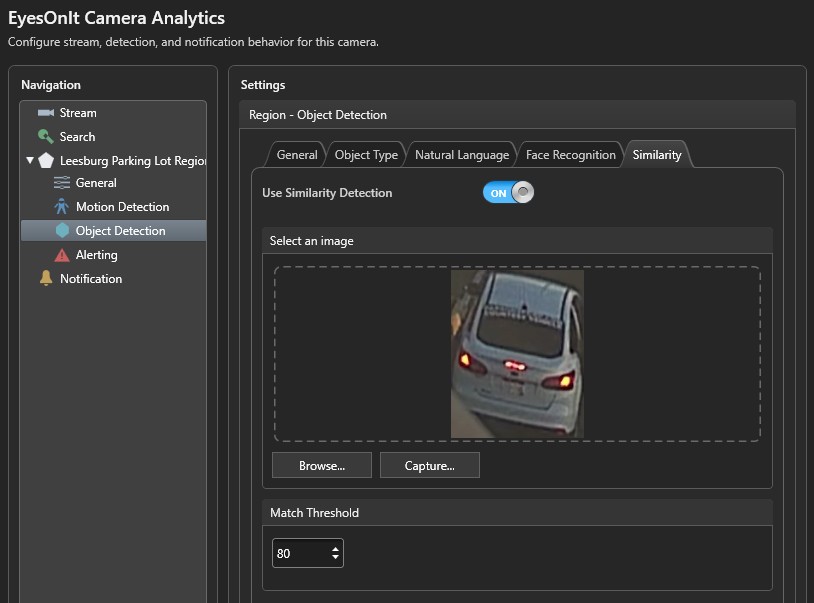
| Setting | Description |
|---|---|
| Use Similarity Detection | Enables image similarity detection for this region. |
| Select an image | Click Browse... to choose an image file from disk, or Capture... to grab a frame directly from the camera stream. The selected image is shown in the preview area. |
| Match Threshold | The minimum confidence score (1–99) required for a similarity match to be accepted. |
Motion Detection settings
Motion detection is accessed via the Region - Motion Detection entry for a region in the navigation tree. When enabled, EyesOnIt uses motion as a gate — it only runs the more resource-intensive object detection when movement is detected in the region first.
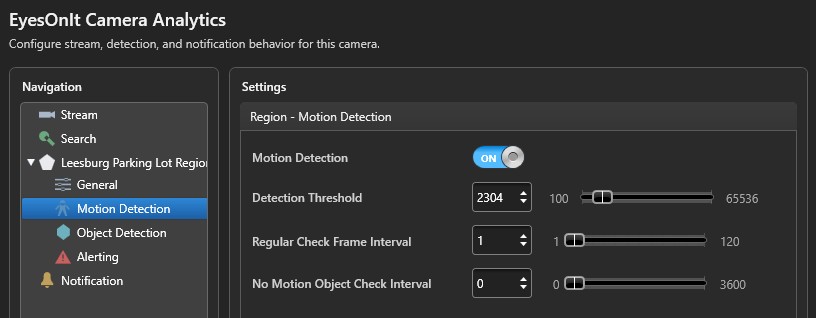
This can be a good way to reduce unnecessary processing on cameras that cover mostly static scenes, while still catching activity when it matters.
| Setting | Description |
|---|---|
| Motion Detection | Enables motion-gated detection for this region. |
| Detection Threshold | How sensitive the motion detector is. Lower values make it more sensitive. |
| Regular Check Frame Interval | How often (in frames) EyesOnIt checks for motion when the scene is active. Range: 1–120. |
| No Motion Object Check Interval | How often (in seconds) EyesOnIt still runs a full detection check even when no motion has been detected — a useful safety net for slow-moving objects. Range: 0–3600. Set to 0 to skip periodic checks entirely when there is no motion. |